

Quick answer: UMEVO Note Plus records audio on the device. After the file is synchronized with AI DVR Link, the app can turn it into a transcript and then create outputs such as a summary, mind map, translation, speaker-labeled text, or Ask AI response. The dependable workflow is record, synchronize, transcribe, review, and only then reuse or share the result.
Disclosure: UMEVO publishes this guide and sells UMEVO Note Plus. The workflow below is based on current UMEVO product, manual, Help Center, App Guide, language, and privacy documentation. It is a usage guide, not an independent transcription-accuracy test.
Updated September 28, 2026. App features, supported languages, plans, and processing terms can change; check the linked live pages before relying on a specific feature.
Jump to: what happens · six-step workflow · review checklist · AI outputs · limits · privacy · FAQ
What happens when UMEVO turns a recording into text?
The recorder and the app have separate jobs. UMEVO Note Plus captures and stores the source audio. AI DVR Link connects to the recorder, synchronizes a selected file, and provides transcription and post-processing tools. This distinction matters: a recording saved on the device is not automatically a finished transcript, and an AI-generated note is not a replacement for the source audio.
This is a file-based workflow. UMEVO's current Help Center describes synchronizing a recording and choosing AI Text Transcription. Someone who needs live captions during a call, webinar, or event should evaluate a live-captioning service for that separate requirement.

The six-step UMEVO transcription workflow
1. Prepare the recording
Choose the recording mode for the situation, position the device where voices will not be blocked, and make a short test in the real environment. For a meeting, avoid placing the recorder behind a laptop or under papers. For a phone call, follow the current attachment and CALL-mode instructions, because the audio path differs from an in-room recording. Obtain any permission required for recording.
2. Capture clear source audio
Start the recording before the discussion becomes important. If possible, ask participants to introduce themselves, reduce overlapping speech, and spell unusual names or specialist terms. These small habits create context that helps both the transcription system and the person who reviews the file later.
3. Synchronize the intended file
Open AI DVR Link, connect the recorder, and synchronize the file you want to process. Check its date, duration, first seconds, and ending. This prevents a common operational error: spending AI processing on a test clip, duplicate, or incomplete recording.
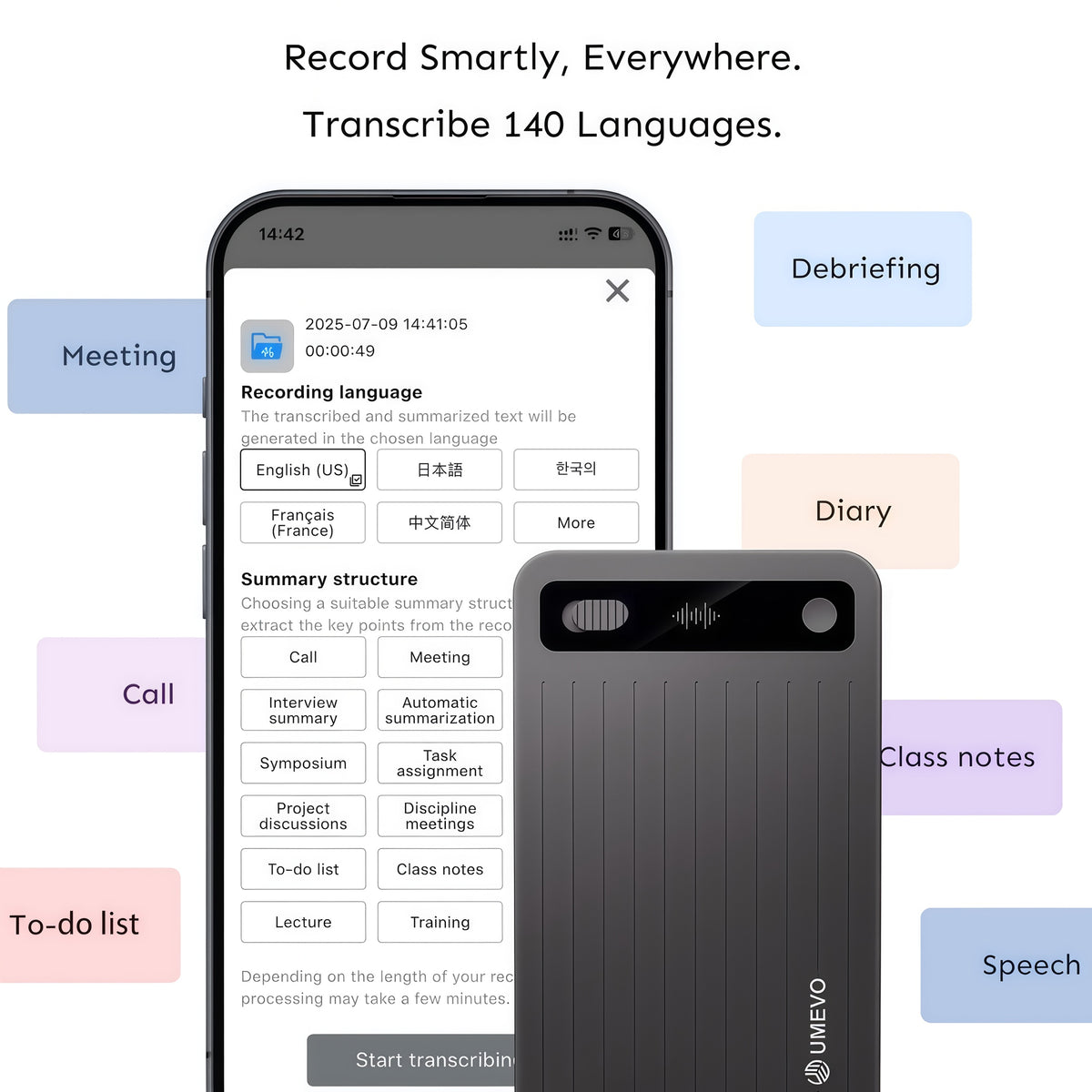
4. Select the source language and transcribe
Choose the language actually spoken in the recording, including the most appropriate regional option when available, and request transcription. The current recording-languages page lists many languages and locale variants, with some availability depending on the plan. Language availability does not mean every accent, dialect, name, or technical term will be recognized equally well.
5. Review the transcript against the audio
Read the transcript once for meaning, then replay the parts that contain consequential details. Correct the working copy without discarding the audio. A transcript becomes useful when a reader can trace an important statement back to what was actually recorded.
6. Generate the right output and share deliberately
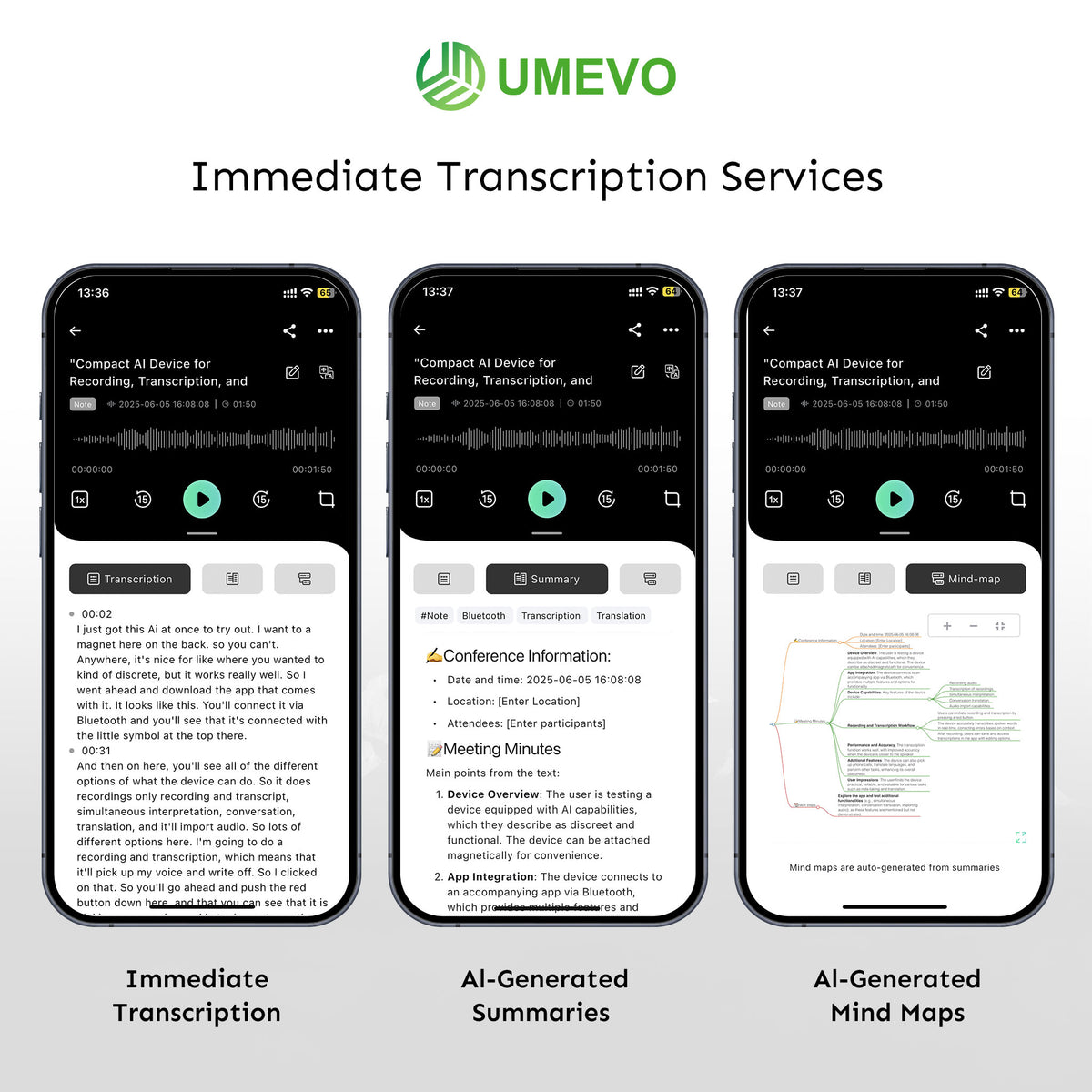
After transcription, use a summary for a quick overview, a mind map for structure, speaker tools for a multi-person discussion, translation for a second-language working copy, or Ask AI for questions about the file. Export or share the reviewed result that the recipient needs. The App Guides say shared links expire after seven days, so use a more durable export when the record must be retained longer.
How to review an AI transcript efficiently
A full word-by-word check is not always necessary. Match the review effort to the cost of an error. Casual personal notes may need only a quick read. Client commitments, research quotations, medical or legal discussions, financial figures, publication copy, and formal meeting minutes need a stricter check.
Practical shortcut: mark high-impact passages while reading the transcript, then replay only those timestamps plus any section that sounds unclear. UMEVO's transcript-checking protocol provides a more formal process when consistency matters.
Which AI DVR Link output should you use?
| Output | Useful for | Review before use |
|---|---|---|
| Full transcript | Search, detailed reference, quotation checking, and creating a durable text record. | Names, numbers, terminology, omitted words, speaker boundaries, and important quotations. |
| Speaker-labeled text | Interviews, meetings, and conversations where attribution matters. | Every speaker change near interruptions, short replies, or similar voices. |
| Smart summary | A quick briefing, meeting recap, study outline, or review of a long recording. | Missing decisions, false certainty, changed conclusions, and action owners. |
| Mind map | Seeing topic hierarchy, planning revision, or turning a discussion into an outline. | Whether the hierarchy matches the conversation and preserves key exceptions. |
| Translation | Creating a working copy for readers in another language. | Proper nouns, specialist terms, tone, ambiguous phrases, and consequential statements. |
| Ask AI response | Locating a topic, extracting a list, or exploring a recording through questions. | Whether each answer is supported by the transcript and the source audio. |
These outputs solve different problems. Start with the transcript because it preserves more of the source. A summary or mind map is useful for compression; it should remain connected to the transcript when accuracy matters.
What affects transcription quality?
There is no responsible universal accuracy percentage for every recording. Results vary with microphone placement, distance, room reflections, background noise, overlapping voices, accents, speaking pace, phone setup, source-language selection, and specialist vocabulary. A controlled test in one room does not predict every meeting, call, or interview.
- Improve the source first: move closer, reduce obstructions, and limit unnecessary movement or handling noise.
- Use the correct mode: NOTE and CALL are intended for different capture paths.
- Test real conditions: use the actual phone, case, room, seating arrangement, and speaking distance.
- Select language carefully: the wrong language or locale can make a clear recording produce weak text.
- Keep the audio: it is the evidence for correcting names, figures, quotations, and decisions.
For the current device controls and file procedures, use the UMEVO Note Plus manual. The recording-mode guide explains why room speech and phone audio require different setups.
What works offline, and what needs the app?
The recorder can capture and store audio locally without creating an AI transcript at the same moment. The AI workflow begins when a file is synchronized to AI DVR Link and submitted for processing. Plan on app access, an account, and service connectivity for transcription, summaries, translation, mind maps, sharing, and Ask AI.
Recording and saving audio on the device do not themselves consume AI transcription minutes according to the current Help Center. AI processing is the step that uses the applicable plan allowance. Because plans and allowances can change, verify the live product page and the terms shown in the account instead of relying on a copied number from an older article.
Privacy, consent, and sensitive recordings
Before uploading sensitive material: the current UMEVO privacy policy states that AI DVR Link is a third-party companion app and that content uploaded for functions such as transcription, summaries, translation, AI processing, cloud storage, or sharing may be processed by the app provider and service providers. Review the current policy, the app provider's terms, and your organization's requirements before use.
Decide what may be recorded, uploaded, retained, and shared before an important session begins. Obtain permission where required. Limit access to the people who need it, and delete test files or temporary shares when they are no longer useful. No device or service can make every recording lawful or appropriate by itself.
Three practical ways to use the workflow
Meeting minutes
Record in NOTE mode, transcribe, mark decisions and assignments, then verify each owner and due date against the audio. Use the summary as a draft, edit it into the organization's minutes format, and share the reviewed version rather than an unchecked AI output.
Interview or research conversation
Keep the full transcript for search, label speakers, and replay every passage intended for quotation. Preserve surrounding context so a concise quote does not change the speaker's meaning. Export the reviewed material in the format used by the writing or research workflow.
Lecture or personal study notes
Transcribe the session, use a summary or mind map to see the structure, and ask questions that point back to specific parts of the recording. Correct names, formulas, dates, and unfamiliar terms before studying from the generated notes.
Frequently asked questions
Does UMEVO Note Plus transcribe recordings?
Yes. The documented workflow is to synchronize a saved recording with AI DVR Link, open the file, choose AI Text Transcription, and then review the generated text.
Does it provide live transcription?
The current Help Center describes file synchronization followed by transcription. Treat UMEVO Note Plus as a record-then-transcribe workflow when planning a session, rather than assuming it will act as a live caption display.
Can the recorder work without internet access?
It can record and store source audio locally. AI transcription and related app features depend on the companion-app and service workflow, so they should not be treated as fully offline functions.
How many languages are supported?
The live language page lists many languages and regional variants, and marks some as plan-dependent. Check that page for the current list and select the actual source language before transcribing.
Can AI DVR Link identify speakers?
The current App Guides include speaker-identification and speaker-naming workflows. Review labels around interruptions, brief replies, and similar-sounding voices before relying on attribution.
Does recording use AI minutes?
No. The current FAQ separates device recording from AI processing. Transcription, summaries, and related processing use the applicable allowance; confirm current plan terms in the account and on the live product page.
Can I export or share the result?
The App Guides document export and sharing. Shared links are described as expiring after seven days, so export a durable copy when the record must remain available longer.
Does UMEVO connect directly to Zoom or Microsoft Teams?
The current FAQ says there is no direct Zoom or Teams integration. If recording a meeting through a separate setup, test the audio path and follow the meeting's consent and data rules.
A final checklist before you rely on the text
- Confirm that the correct recording is complete and audible.
- Select the spoken source language and an appropriate regional option.
- Generate the transcript before asking for summaries or other compressed outputs.
- Replay names, numbers, dates, decisions, commitments, and quotations.
- Check speaker labels and every summary statement that will influence action.
- Export or share only the reviewed output, with appropriate access and retention.
The purpose of an AI recorder is to shorten the path from a conversation to usable information. UMEVO Note Plus and AI DVR Link can organize that path, but the strongest result still combines clear capture, the correct app settings, and human review.
For step-by-step app instructions, use the current AI DVR Link App Guides. For specifications, availability, and live plan terms, check the UMEVO Note Plus product page.


0 comments