

To turn on voice-to-text on Android, open a text field so your keyboard appears, open the keyboard’s settings, and enable Voice typing. On Gboard, tap the gear icon, choose Voice typing, and turn on Use voice typing. On a Samsung Galaxy phone using Samsung Keyboard, go to Settings > General management > Keyboard list and default, then choose the voice-input service you want to use. Menu names can vary by phone model, Android version, carrier, and region.
Quick check: Open Messages, Gmail, Keep, or another app with a text box. Tap the text box, then tap the microphone on the keyboard—not the microphone used to record a voice message.
If the keyboard microphone is missing, first check the keyboard’s voice-typing switch, its microphone permission, and Android’s system-wide microphone access.
Quick answer: enable Android voice typing
- Open any app where you can type and tap a text field.
- Identify the active keyboard. The steps differ for Gboard and Samsung Keyboard.
- Open the keyboard settings and turn on voice typing or select a voice-input service.
- Return to the text field and tap the keyboard microphone.
- Allow microphone access if Android asks, then speak normally.
Google says Gboard voice typing works in most places where you can type, but it does not support every language. Samsung also notes that available screens and settings vary by device, software version, carrier, and market. That is why the keyboard-first method below is more reliable than following one universal Android Settings path.
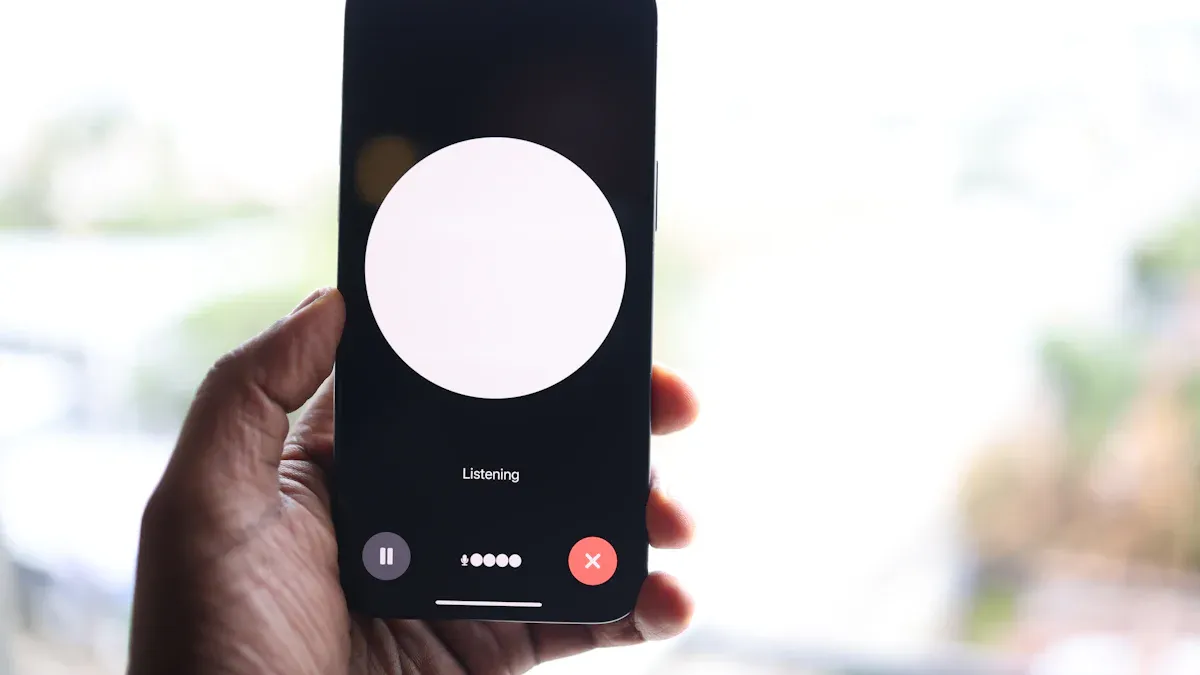
Before you start: identify your keyboard
Android phones can use different keyboards. Google Pixel phones normally use Gboard, while Galaxy phones may use Samsung Keyboard or Gboard. Other brands may ship another keyboard. To avoid changing the wrong setting:
- Tap a text field to show the keyboard.
- Look for a Google “G” logo, a Samsung Keyboard label in settings, or the keyboard-switch button near the navigation bar.
- If needed, open Settings and search for default keyboard, keyboard list, or on-screen keyboard.
Do not confuse voice typing with Google Assistant, Gemini, Bixby, Voice Access, Live Transcribe, or a voice-message button inside a chat app. Voice typing inserts spoken words into the active text field.
How to turn on voice typing in Gboard
The most consistent route is to open Gboard from a text field:
- Open Messages, Gmail, Keep, or another app with a text field.
- Tap the text field to display Gboard.
- Tap the Settings gear. If the gear is hidden, tap the toolbar menu or press and hold the comma key to reach settings.
- Tap Voice typing.
- Turn on Use voice typing or Voice typing, depending on the version shown.
- Return to the app, tap the keyboard microphone, and speak when the listening indicator appears.
This follows Google’s current Gboard voice-typing instructions and Gboard troubleshooting guidance.
Allow Gboard to use the microphone
If you previously denied access, go to Settings > Apps > Gboard > Permissions > Microphone and choose Allow only while using the app. Google documents the same app-permission flow in Android Help. On a customized Android interface, the labels may be App management, Permission manager, or something similar.
Google Pixel: basic vs. advanced voice typing
Basic Gboard voice typing and Pixel’s advanced voice typing are related but not identical. On a supported Pixel:
- Open a text field and tap Gboard’s gear icon.
- Tap Voice typing.
- Turn on the available advanced voice-typing option.
Google currently lists Pixel 6 and newer—including Pixel Fold and Pixel Tablet—as the hardware requirement for advanced voice typing. Supported languages are limited, and the primary Gboard and device languages must match. Advanced features can include automatic punctuation and editing commands, but availability depends on the device, language, account, and software. See Google’s advanced voice-typing requirements before troubleshooting a missing option.
How to turn on voice-to-text on Samsung Galaxy
Galaxy devices can offer Samsung voice input, Google Voice Typing, or both. For the current Samsung Keyboard flow:
- Open Settings.
- Tap General management.
- Tap Keyboard list and default.
- Confirm the voice-input service you want is enabled.
- Tap Samsung Keyboard, then Voice input, and select Samsung voice input or Google Voice Typing.
- Open an app with a text field and tap the keyboard microphone.
Samsung voice input is available only while Samsung Keyboard is active. If you use Gboard on a Galaxy phone, follow the Gboard steps instead. Samsung’s current instructions are available in its Galaxy keyboard settings guide and Galaxy voice-to-text guide.
| Active keyboard | Where to enable voice typing | Important note |
|---|---|---|
| Gboard | Keyboard gear > Voice typing | Gboard needs microphone permission. |
| Samsung Keyboard | Settings > General management > Keyboard list and default; then Samsung Keyboard > Voice input | Samsung voice input requires Samsung Keyboard. |
| Other keyboard | Use that keyboard’s settings or switch the default keyboard | Feature names and support depend on the keyboard app. |
How to use voice-to-text in an app
- Open an app where normal keyboard typing is allowed.
- Tap the exact text field where you want the words to appear.
- Tap the microphone on the keyboard or its toolbar.
- Wait for the listening indicator, then speak.
- Tap the microphone again to pause or stop, then review the text before sending or saving it.
You can say punctuation such as “comma,” “question mark,” “new line,” or “new paragraph” when the selected language supports those commands. Punctuation and command behavior vary by language and voice-typing mode, so always check the result.

Microphone icon missing? Check these items
| What you see | What to check | Next action |
|---|---|---|
| No mic anywhere on Gboard | Gboard Settings > Voice typing | Turn voice typing on, then reopen the keyboard. |
| Mic is hidden from the top row | Keyboard toolbar or three-dot menu | Expand or customize the toolbar. |
| Galaxy mic is not on the toolbar | Samsung Keyboard toolbar and Keyboard list and default | Enable/select voice input; also inspect the navigation bar. |
| Mic appears but will not listen | App microphone permission and Android microphone access | Allow microphone access while using the app and turn on system mic access. |
Voice typing not working: fix it in order
Start with the checks that are most directly related to voice input. Stop when the microphone works.
- Try a different text field. Some apps or secure fields do not allow voice typing.
- Confirm voice typing is on. Open the active keyboard’s settings and check its voice-input option.
- Check microphone permission. For Gboard, use Settings > Apps > Gboard > Permissions > Microphone.
- Check Android’s microphone control. On supported Android versions, swipe down twice and confirm the Microphone quick-setting tile is not blocking access. Google explains this control in Android Help.
- Check the selected language. The keyboard language and the spoken language should match; not every language supports every voice feature.
- Update the relevant apps and system. Update Gboard, Google components, Samsung Keyboard, and Android as applicable, then restart the phone.
- Use the manufacturer’s support channel. If menus do not match, search Settings for “voice input” or “keyboard” and consult the support page for your exact model and region.
Clearing app data or reinstalling a keyboard can remove preferences and learned data. Treat those as later recovery steps, not the default first fix.
Language and offline options
Voice-typing support is not identical across languages, devices, or services. In Gboard, add or switch the keyboard language before dictating. Pixel advanced voice typing has its own supported-language and device requirements. On current Galaxy software, Samsung’s voice-input settings can include an offline language-pack option, but the exact choices depend on device, region, and selected voice-input service.
Do not assume that every voice-typing feature works fully offline. Downloaded language data, basic dictation, advanced commands, punctuation, and cloud-based recognition can have different requirements. Test your chosen language in airplane mode before relying on it without a connection. For a broader comparison of setup, offline use, and fixes, see our Android voice-to-text setup and troubleshooting guide.
Voice typing is not the same as recording a conversation
Keyboard voice typing is designed to insert speech into the text field you are currently editing. A recorder is designed to capture audio for later playback or transcription. Those workflows have different privacy, storage, consent, and review considerations.
- Use keyboard voice typing for short messages, notes, searches, and form fields.
- Use a recording workflow only when you need to preserve a meeting, interview, lecture, or call and you have the necessary permission.
- Review the privacy controls of the keyboard or recorder you choose. Processing behavior can differ by feature and device.

One-minute Android voice-typing checklist
- The correct keyboard is active.
- Voice typing or the preferred voice-input service is enabled.
- The keyboard has microphone permission.
- Android’s system-wide microphone access is on.
- The selected keyboard language matches the language you speak.
- The microphone you tap belongs to the keyboard, not the chat app’s voice-message recorder.
- You test the result before relying on names, numbers, punctuation, or specialist terms.
Frequently asked questions
How do I activate voice-to-text on Android?
Open a text field, open your active keyboard’s settings, and enable voice typing. On Gboard, use Settings > Voice typing. On Samsung Keyboard, use Settings > General management > Keyboard list and default, then select the voice-input option in Samsung Keyboard settings.
Why is the microphone missing from my Android keyboard?
Voice typing may be off, the icon may be inside the keyboard toolbar menu, the wrong keyboard may be active, or microphone access may be blocked. Check those items before reinstalling anything.
How do I allow microphone permission for Gboard?
Go to Settings > Apps > Gboard > Permissions > Microphone, then choose Allow only while using the app. Labels can differ on customized Android interfaces.
Can I use Google Voice Typing on a Samsung phone?
Many Galaxy devices let you choose Google Voice Typing or Samsung voice input. Availability and the exact menu depend on the phone, software, carrier, and market.
Is Pixel advanced voice typing available on every Android phone?
No. Google currently limits advanced voice typing to Pixel 6 and newer, including supported Fold and Tablet models, and only certain languages and configurations are eligible.
Does Android voice-to-text work without internet?
Some devices and services offer downloaded or on-device language support, but offline capability varies by keyboard, language, phone, and feature. Test your configuration offline before depending on it.
Is voice typing the same as recording a voice message?
No. Voice typing converts speech into editable text in the active field. A voice-message or recorder button captures audio instead.
Official sources
- Google Gboard Help: Type with your voice
- Google Gboard Help: Fix problems with Gboard
- Google Gboard Help: Use advanced voice typing features
- Android Help: Change app permissions
- Android Help: Check microphone access
- Samsung Support: Adjust keyboard settings
- Samsung Support: Use voice-to-text
Last reviewed: September 4, 2026. Android and keyboard menus can change. If a path differs, search your device Settings for “voice input,” “voice typing,” or “keyboard,” and use the support guide for your exact model and region.





0 comments